


Image to PDF - PDF Maker
4.913.32K Reviews
App Specs
- Version
- 1.7.8
- Updated On
- License
- Free
- Downloads
- 50,000,000+
- Developer
- Simple Design Ltd.
- Categories
- Productivity
- Platform
- Android, iOS
Screenshots
 Analysis by AppCompare
When I need to turn a few pictures into one file I can send or keep, I want the job to be quick and predictable. Image to PDF - PDF Maker is built for that narrow, practical task: making PDFs from images, with compression as part of its focus. It is a free productivity app from Simple Design Ltd., and its appeal is less about doing everything with documents than about keeping this conversion straightforward.
Speed, setup, and everyday use
Getting started is simple, and the uncluttered layout makes the basic job easy to understand. The app is rated for Everyone, and it runs on Android 6.0 or later. Its current version is 1.7.3. Those details matter if you are checking compatibility before installing, especially on an older phone.
What a quick conversion can and cannot mean
For a small batch of ordinary images, this kind of focused workflow should feel lighter than opening a full document editor, creating a blank file, and placing pictures one by one. Select the images, put them in the intended order, adjust the available output choices, and convert. That direct route is the main reason I would keep a dedicated image-to-PDF tool around.
Speed still depends on the material you choose. A handful of modest images is a different job from a large collection of very detailed pictures. If a batch takes longer than expected, I would first reduce the number of images being processed at once or choose a smaller output size where that suits the document. Smaller files are easier to share, though fine print and detail can become less clear, so I would inspect the result before sending it.
Useful control over the finished pages
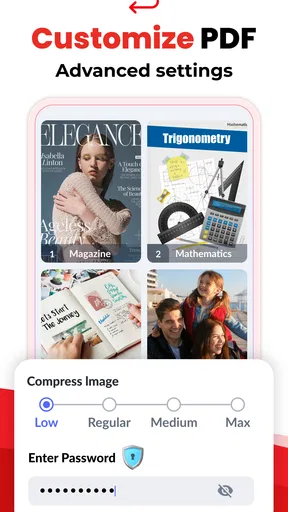
The app lets you choose image order and adjust output quality, page size, margins, and orientation. These controls are more useful than they may sound: a set of portrait receipts can be kept readable, while wide images may be better suited to landscape pages. I would decide the page layout before converting rather than accepting a default and discovering that the result is awkward to print or view.
Compression is particularly helpful when a PDF is meant for email or a messaging app, where a bulky attachment can be inconvenient. I would keep a high-quality version when the images contain small text, signatures, or details someone may need to zoom in on. For casual reference images, a more compact file can be the sensible trade-off. There is no single best setting for every batch; the right choice depends on whether clarity or manageable size matters more.
Heavy batches and a practical workflow
For a longer set, I find it sensible to sort the pictures in the gallery first and then select them in the order the document should follow. That small preparation step can save time and reduce the chance of having to rebuild a file because a page is out of place. If the app allows rearranging after selection, I would still check the sequence before converting; page order is easy to overlook when scanning through many similar images.
Worth Reading Before You Choose

EA SPORTS FC Mobile 26 Is a Bigger Football Game, but It Takes Time

Flipboard Shows What News Apps Must Do Beyond the Feed

Switching to Android Auto Means Rethinking Your Driving Routine

Google Calendar Makes a Crowded Week Easier to Manage

Ludo King Makes the Most of the Minutes Between Plans

Baby Panda World Brings Quick Play to Modern Phones, but Its Game Library Feels Busy
A realistic example is photographing several pages of a permission form or class handout and combining them into one document before sending it. I would take each picture in good light, check that the full page is visible, then choose a page layout and quality that keep the writing legible. The conversion cannot rescue a blurry or cropped photo, so checking the source images is the most valuable quality-control step.
Reliability and recovery habits
The interface is designed around a clear conversion task, which makes it easier to repeat the same basic process without learning a complicated editor. Still, I would not treat any phone conversion as a reason to skip checking the finished PDF. Open it once, confirm the pages are in order, and make sure important details remain readable before deleting source photos or sending the file on.
For work that matters, keeping the original images until the PDF has been checked is a simple safeguard. If a conversion is interrupted or the output is not what you expected, the originals give you a straightforward way to try again. That is especially useful for a batch of receipts, application pages, or signed forms that would be annoying to photograph a second time.
Where it fits among alternatives
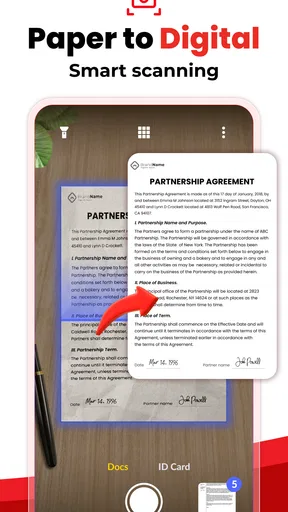
The usual alternatives are a phone’s built-in print-to-PDF option, a scanner app, or a general-purpose PDF editor. A built-in option can be convenient when the pictures are already in a document or printable view. A scanner app is a better fit when the main need is capturing paper clearly, while a full editor makes more sense if you also need to revise text or manage complicated documents.
This app’s advantage is its focused image-to-PDF purpose and the ability to tune layout and compression without turning the task into a larger editing project. The trade-off is that it is not a substitute for careful scanning or a complete PDF workspace. I would choose it for assembling images into a shareable file, not for correcting poor photography or making substantial edits to a finished document.
Sharing, storage, and privacy-conscious choices
Once a PDF is ready, sharing it through common channels such as email, cloud storage, or messaging is part of the practical appeal. I would give the file a recognizable name before sending it and open the attachment from the destination app when possible. A clear filename and a quick final check make it easier for the recipient to identify the right document and avoid confusion between several similar files.
The app also offers password protection for PDFs, which can be useful when the contents should not be casually opened by anyone who receives the file. A password is not a replacement for choosing a trusted sharing channel or checking who has access to a cloud folder. I would use this option for sensitive material only when the recipient can receive the password separately and knows how to open a protected PDF.
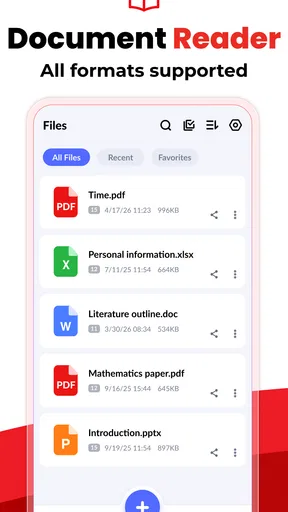
The app can keep converted PDFs available within its own interface, which is handy if I need to find or resend a recent file. I would not make that the only place I keep an important document: save or share a copy to a location that fits your normal backup habits, and confirm it arrived there. That extra step is worthwhile for tax paperwork, school records, or anything that would be difficult to recreate.
Who is likely to appreciate it
I would recommend this app to someone who regularly turns photographed pages, receipts, artwork, or reference images into a single PDF and wants a few practical controls without learning a large editor. Students can use that workflow for notes or handouts; freelancers may find it useful for sending grouped receipts; and anyone organizing household paperwork can create a file that is easier to share than a string of separate pictures.
It is less suitable if you need accurate text recognition, automatic correction of skewed pages, or advanced document editing. In those cases, a scanner or full PDF app is likely to be a better starting point. It may also be unnecessary if you only make a PDF occasionally and your phone already has a built-in method that handles your needs.
Cost, reputation, and expectations
The app is free to install, with in-app purchases listed at $1.99 per item. I would try the basic workflow first and decide whether any paid option is relevant to how I use it, rather than assuming extra purchases are needed for an occasional conversion. It has an average rating of 4.9 from around 2.3 million ratings, alongside about 13,000 written reviews, and has passed 50 million installs. That broad adoption is reassuring context, but it does not guarantee that every device or batch will behave identically.
For performance, I would set expectations according to the phone and the job rather than assume every conversion will be instant. Large, high-resolution images can take more time and storage to process than a few small pictures. On a device with limited free space, I would avoid selecting a huge batch in one go and make sure there is room for the resulting file. This is a practical precaution, not a claim that the app requires unusually powerful hardware.
My performance verdict
What I value most here is the narrow workflow: choose images, arrange the pages, make sensible layout and quality decisions, then share the result. Compression gives the app a useful purpose beyond simply placing photos in a PDF, because a file that is easier to send can be more convenient in everyday use. The main responsibility remains with the user: choose clear source images, balance size against readability, and inspect the exported document.
Overall, I see it as a handy, focused option rather than an all-purpose PDF solution. If your regular need is image conversion, the free starting point and approachable controls make it worth considering. If your priority is scanning correction, text extraction, or detailed editing, I would look at a tool designed around those jobs instead.
The app has become a useful choice for the moments when I want a collection of pictures to behave like one document. I would keep it in mind for school, work, and personal paperwork, while taking the time to check the final pages before relying on them. That balance captures my view: convenient for a specific task, with better results when I prepare the images and choose output settings carefully.
Features and Functionality
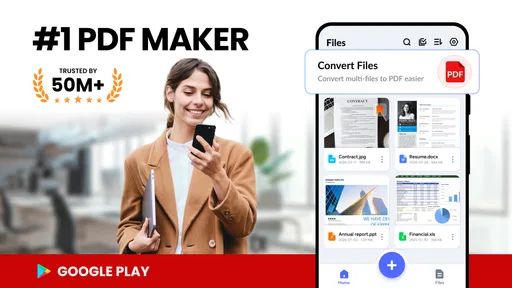
The main feature, of course, is converting images to PDFs, and it does this exceptionally well. You can select multiple images from your gallery or even click new ones directly from the app. The process is as simple as selecting the images, arranging them in the order you want, and hitting the convert button. Voila, you have a PDF!
One thing I love is the ability to adjust the quality of the PDF. Whether you want a high-resolution document or need to save space with a lower quality file, this app gives you the control. Plus, it supports various image formats, so you’re not stuck converting only JPEGs.
Customization Options
Beyond just converting, the app lets you customize the PDF. You can add margins, choose the page size, and even customize the orientation. It’s these little touches that make the app stand out. For instance, I wanted a landscape-oriented PDF for a collage project, and it was as easy as selecting the option from a dropdown menu.
Another nifty feature is adding passwords to your PDFs. If you’re dealing with sensitive images or documents, this extra layer of security is a great addition.
User Experience
Let’s talk about user experience. The app runs smoothly without any noticeable lag. Even when I threw a dozen high-resolution images at it, it handled them like a champ. The conversion speed is impressive, and I didn’t experience any crashes or glitches, which is a relief because we all know how frustrating that can be!
The app also doesn’t bombard you with ads, which is a huge plus. You get a clean experience without those pesky pop-ups that some free apps tend to have.
Sharing and Storage
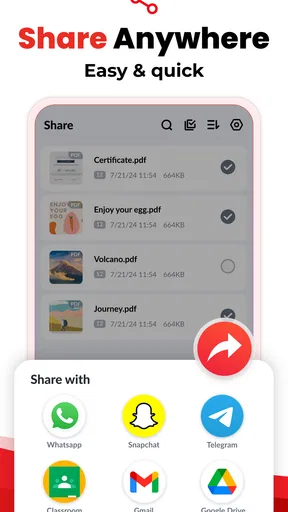
Once your PDF is ready, sharing it is super easy. The app integrates seamlessly with email and cloud storage services like Google Drive and Dropbox. You can also share directly via messaging apps. I found this particularly useful when I needed to send some documents quickly without jumping through hoops.
Oh, and did I mention that you can store your PDFs within the app? It’s like having a mini library of all your conversions, which you can access anytime. This feature comes in handy when you need to revisit or resend a document.
Final Thoughts
Overall, this image-to-PDF app does exactly what it promises, and it does it well. It’s intuitive, efficient, and packed with just the right amount of features to make it a staple on your device. Whether you need it for work, school, or personal projects, it’s a tool that delivers.
So, if you’re on the hunt for an app that simplifies the process of converting images to PDFs, give this one a shot. It’s free to download, which is another reason to try it out. Who knows, it might just become one of your favorite apps too!
Pros
- Easy-to-use interface for quick conversions.
- Supports multiple image formats seamlessly.
- Batch processing saves time and effort.
- High-quality PDF output with clear resolution.
- Compatible with cloud storage services.
Cons
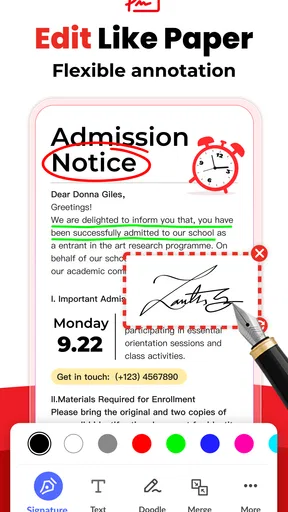
- Limited editing tools for PDFs.
- Ads can be intrusive in the free version.
- No direct OCR support included.
- File size limits in the free version.
- Occasional crashes on older devices.
FAQs for Image to PDF - PDF Maker
What features does Image to PDF - PDF Maker offer?
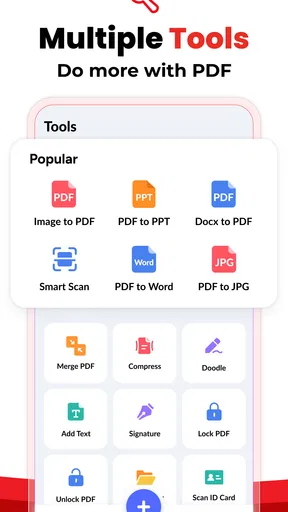
Image to PDF - PDF Maker allows users to easily convert images into PDF files. It supports a wide range of image formats such as JPG, PNG, BMP, and more. The app also includes features for organizing and merging multiple images into a single PDF, as well as options for adjusting image quality and size.
Is Image to PDF - PDF Maker user-friendly for beginners?
Yes, Image to PDF - PDF Maker is designed with a user-friendly interface that is easy to navigate. Even beginners will find it straightforward to convert images to PDFs with just a few taps. The app provides clear instructions and intuitive controls, making it accessible for users of all experience levels.
Are there any limitations on the number of images I can convert at once?
The app allows batch conversion, enabling users to convert multiple images into a single PDF document. However, the number of images you can convert at one time may depend on your device’s processing power and storage capacity. For best performance, it's recommended to check the app’s settings and your device’s available resources.
Does the app offer any editing tools for the images before conversion?
Yes, Image to PDF - PDF Maker includes basic editing tools such as cropping, rotating, and resizing images before converting them into PDFs. These tools help ensure that the final PDF document meets your specific needs. Advanced editing features might require a premium version of the app.
Is my data secure when using Image to PDF - PDF Maker?
Security is a priority with Image to PDF - PDF Maker. The app processes all conversions locally on your device, which means your images and PDFs are not uploaded to external servers. This ensures that your data remains private and secure, giving you peace of mind while using the app.


